

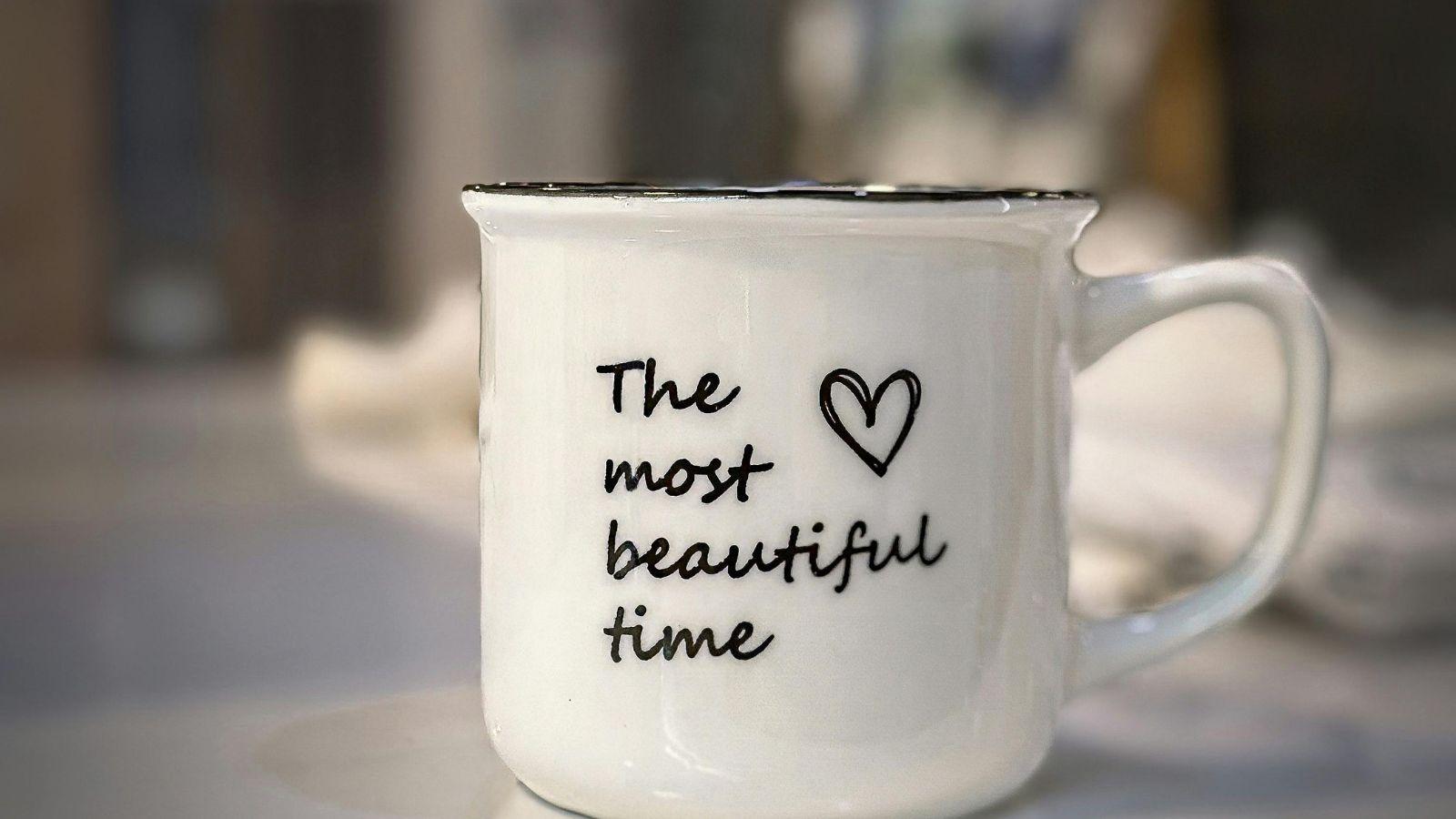

A housewarming gift often works best when it is practical but still personal. Custom mugs meet that balance: they are inexpensive to produce, easy to customize, and usable every day.
For people without graphic design experience, however, creating something that looks intentional rather than improvised can feel intimidating. Mug mockup generators simplify that process. These tools provide pre-sized canvases, layout guides, and realistic 3D previews so users can focus on the message instead of technical setup.
One accessible starting point is a mug design template from Adobe Express, which offers structured layouts and built-in preview tools for beginners. While different platforms can support specific steps in the workflow, the core process—concept, layout, preview, export, and print—remains consistent across most mug mockup generators. The steps below focus on decisions, quality checks, and practical execution rather than promotional cla
Step-by-Step How-To Guide for Using Mug Mockup Generators
Step 1: Start With a Print-Specific Mug Template
Goal
Select a canvas that matches the exact mug dimensions and print style.
How to do it
- Open a mug-specific layout.
- Confirm canvas dimensions match your printer’s wrap size.
- Choose a layout type:
- Front-centered print
- Two-sided mirrored print
- Full-wrap design
- Duplicate the template before editing.
- Review safe area and bleed guides.
What to watch for
- Using a generic social media or flyer template instead of a print layout.
- Ignoring handle placement when positioning key elements.
- Overlooking bleed margins.
Tool notes
For tracking version changes or organizing multiple gift variations, a cloud storage tool like Google Drive can help manage drafts and exports without altering design files directly.
Step 2: Define the Core Message Before Adding Design Elements
Goal
Clarify what the mug should communicate so the layout remains clean and readable.
How to do it
- Choose one primary message (e.g., “Home Sweet Home,” a move-in date, or an inside joke).
- Limit text to a short, readable phrase.
- Decide whether to include:
- Names
- A city or neighborhood
- A year
- Sketch a quick layout plan (text-only, text + icon, photo-based).
- Keep hierarchy simple: headline first, optional secondary line below.
What to watch for
- Overloading the design with multiple fonts.
- Using long sentences that wrap awkwardly.
- Centering everything without considering visual balance.
Tool notes
You can draft copy separately in a writing tool like Grammarly to check tone, clarity, and spelling before pasting it into the template.
Step 3: Add Graphics or Images With Print Quality in Mind
Goal
Enhance the design visually without compromising clarity.
How to do it
- Upload high-resolution images (300 DPI preferred).
- Use simple icons or shapes to reinforce the theme.
- Scale images proportionally to avoid distortion.
- Align elements using grid guides.
- Preview placement on the curved mug mockup.
What to watch for
- Blurry images scaled beyond original resolution.
- Thin lines that may disappear when printed.
- Placing important visuals near the handle seam.
Tool notes
If you need to adjust photo brightness or contrast before uploading, a basic image editor like Pixlr can help fine-tune clarity prior to placement in the mockup.
Step 4: Account for Curvature and Viewing Angles
Goal
Ensure the design looks balanced when wrapped around a cylindrical surface.
How to do it
- Switch to 3D preview mode.
- Confirm that text remains visible when the mug rotates.
- Keep critical text in the most visible front-facing area.
- Test how the design looks from both left- and right-handed perspectives.
- Check seam alignment in full-wrap layouts.
What to watch for
- Text disappearing behind the handle.
- Misaligned repeating patterns.
- Visual weight shifting unexpectedly in curved preview.
Tool notes
For collecting quick feedback before finalizing, you can share a screenshot with collaborators using Slack or Microsoft Teams to get practical input without exporting prematurely.
Step 5: Refine Color, Contrast, and Legibility
Goal
Prepare the design for consistent print output.
How to do it
- Increase contrast between text and background.
- Avoid pale gray text on white mugs.
- Simplify gradients if unsure about print quality.
- Confirm color mode requirements with your printer.
- Zoom in to check small text clarity.
What to watch for
- Neon colors that print differently than on screen.
- Overly thin script fonts.
- Backgrounds that compete with the message.
Tool notes
If you need to verify color accessibility or contrast ratios, a free checker like WebAIM’s Contrast Checker can help ensure readability before exporting.
Step 6: Export in the Correct Format for Printing
Goal
Produce a high-resolution file suitable for production.
How to do it
- Export at full size (do not scale down).
- Choose PDF or high-resolution PNG.
- Confirm 300 DPI where required.
- Retain bleed if your printer requests it.
- Save an editable master version.
What to watch for
- Exporting compressed JPEG files.
- Flattening layers accidentally before final review.
- Resizing during export.
Tool notes
If you want to compress or rename files for organized submission, a utility tool like Smallpdf can help convert or optimize PDFs without altering visual fidelity.
Step 7: Manage Production and Delivery
Goal
Ensure the mug arrives in time for the housewarming event.
How to do it
- Confirm turnaround times before ordering.
- Order a proof copy if timing allows.
- Track shipment details.
- Inspect packaging for gift presentation.
- Keep the final file archived for reorders.
What to watch for
- Holiday-related production delays.
- Incorrect shipping addresses.
- Skipping proof review when time permits.
Tool notes
To manage deadlines and ensure no steps are missed, a task management platform like Trello can help track design completion, ordering status, and delivery timelines.
Common Workflow Variations
Photo-Focused Design
Center a single high-resolution photo and add a minimal caption below. Keep the layout uncluttered so the image remains the focal point.
Text-Only Minimalist Mug
Use bold typography and ample white space. This works well for short phrases and keeps printing simple.
Full-Wrap Pattern
Design a seamless pattern that aligns at edges. Use preview tools carefully to confirm repeat consistency.
Multiple Personalized Versions
Duplicate the template and swap only the name or short message. Maintain layout consistency for visual cohesion across gifts.
Before You Start Checklist
- ☐ Message finalized
- ☐ Recipient details confirmed
- ☐ Printer dimensions verified
- ☐ High-resolution images ready
- ☐ Font selection limited to 1–2 styles
- ☐ Timeline allows for shipping
- ☐ Backup copy saved
Pre-Export / Pre-Order Checklist
- ☐ Spelling reviewed
- ☐ Safe margins respected
- ☐ High contrast maintained
- ☐ 300 DPI confirmed
- ☐ Seam alignment checked
- ☐ Editable file archived
- ☐ Print-ready file exported
Common Issues and Fixes
Blurry graphics
Replace with higher-resolution images rather than enlarging the original file.
Text cut off at edges
Move important elements further inward and confirm bleed settings.
Muted print colors
Increase contrast slightly and verify printer color profile compatibility.
Text too small to read
Increase font size and simplify layout.
Design shifts after export
Reopen exported file and compare dimensions against original template before submitting to printer.
How To Use Mug Mockup Generators: FAQs
Do I need design experience?
No. Mug mockup generators provide layout guides and previews that reduce technical setup.
Should I design full-wrap or front-only?
Front-only designs are easier and safer for quick gifts. Full-wrap designs offer more impact but require careful alignment.
What file type works best?
Most print providers accept high-resolution PDF or PNG files at 300 DPI.
How far in advance should I order?
Plan at least one week ahead, longer during peak seasons.